In short: Video and audio files are too big to upload to your site, so host them on Kaltura, YouTube or Vimeo and embed them. For YouTube and Vimeo, paste the link on its own line. For Kaltura, paste its embed code. New to Kaltura? See the Kaltura guide in Moodle.
YouTube and Vimeo
- On YouTube or Vimeo, click Share and copy the link.
- In your post, paste the link on an empty line by itself. In the Classic Editor, use the Visual tab.
- The video player appears in the editor. Save your post.
Tip: Paste the plain link, not the embed code. If the link shows up as text, make sure nothing else is on that line.
Kaltura video and audio
Get the embed code
- In Moodle, go to My Media and open your video or audio.
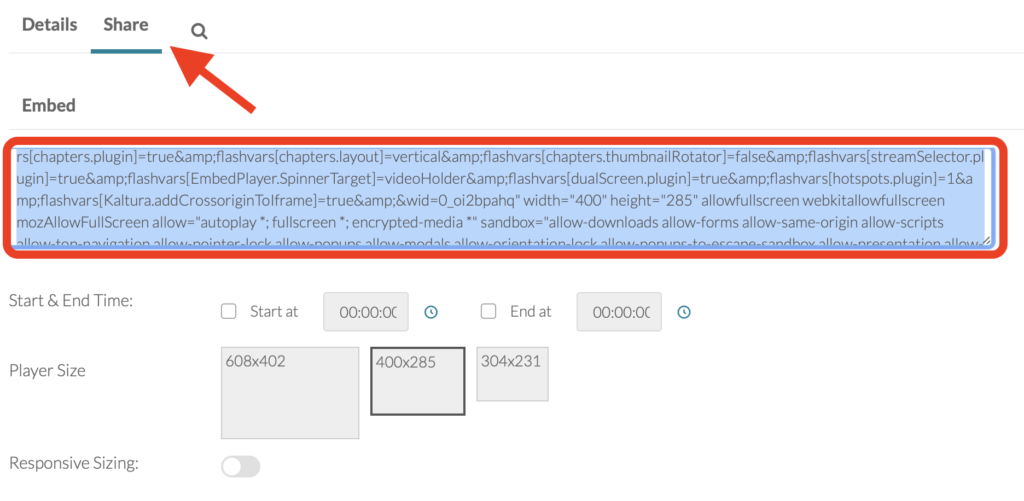
- Click the Share tab.
- Choose a player size and, if you like, a start time.
- Copy the embed code.
Classic Editor
- Click where you want the video to go.
- Click the Code tab at the top right of the editor.
- Paste the embed code.
- Click the Visual tab. The player appears.
- Save your post.

Block editor
- Click the + button where you want the video, or type
/htmlon an empty line, and choose Custom HTML. - Paste the embed code into the block.
- Click Preview in the block toolbar to check the player.
- Save your post.
Good to know
- Other services that give you an embed code, such as Google Maps, work the same way as Kaltura.
- Embedded video plays from Kaltura, YouTube or Vimeo. If the original is deleted or made private there, it stops working in your post too.