People join your site by logging in to it once. They start as Subscribers, and you then give them the role they need. This guide is for site admins.
Invite people
- Send them your site’s login address: your site address followed by
/wp-login.php. For example:palette.ecuad.ca/yoursite/wp-login.php - They click Sign in with Microsoft and log in with their ECU account.
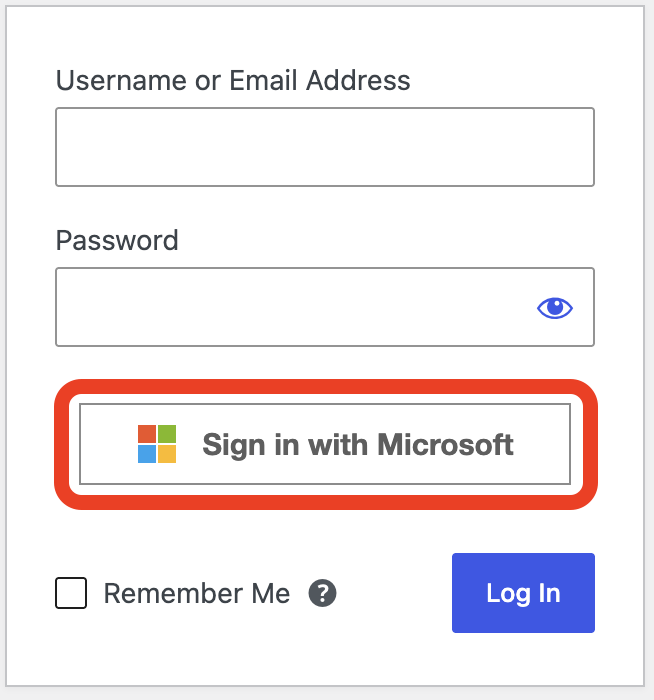
That’s it. They now appear in your Users list as a Subscriber.
Change someone’s role
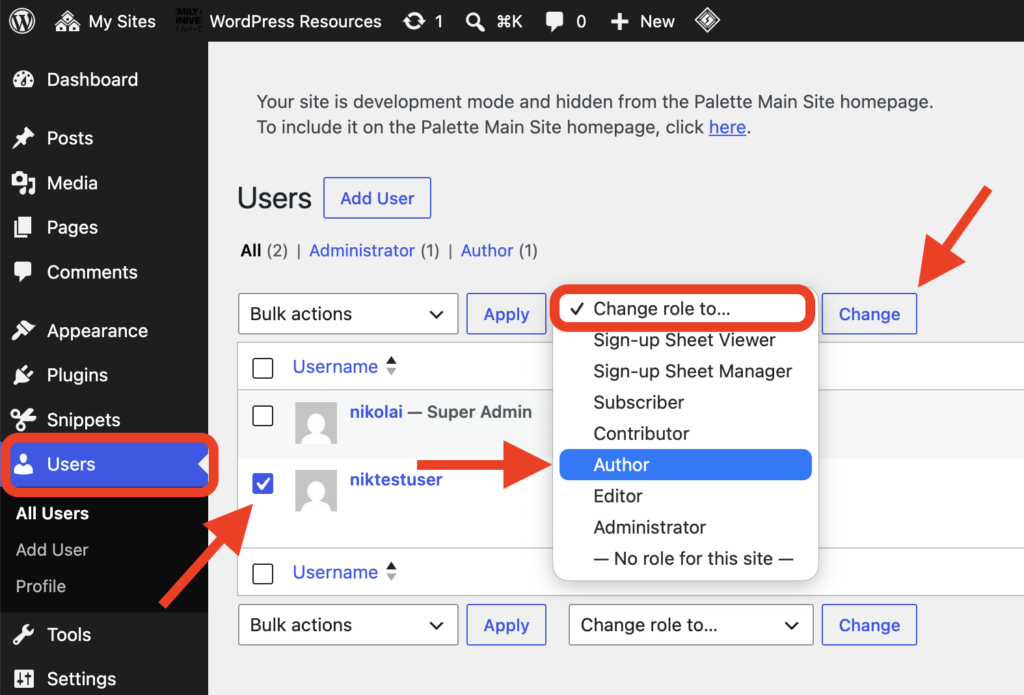
- In your Dashboard, click Users.
- Tick the box next to the person’s username.
- In the Change role to… menu, choose a role, such as Author.
- Click Change.
Which role?
- Subscriber: can view the site, including a private one. Cannot post.
- Contributor: writes posts, but an Editor or Administrator has to publish them.
- Author: writes and publishes their own posts. Right for most students.
- Editor: writes, edits and publishes anyone’s posts and pages.
- Administrator: full control, including settings, themes and users. Give it sparingly.
Good to know
- Someone missing from Users? They haven’t logged in to your site yet. Send them the login address again.
- To take someone off your site, tick them, choose Remove from Bulk actions, click Apply, then confirm. Their ECU account and posts on other sites are not affected.