The settings that matter most for a class or portfolio site: who can see it, whether it’s listed on Palette, and what visitors land on. This guide is for site admins.
Choose who can see your site
- In your Dashboard, go to Settings → Reading.
- Under Site visibility, choose an option from the list below.
- Scroll down and click Save Changes.
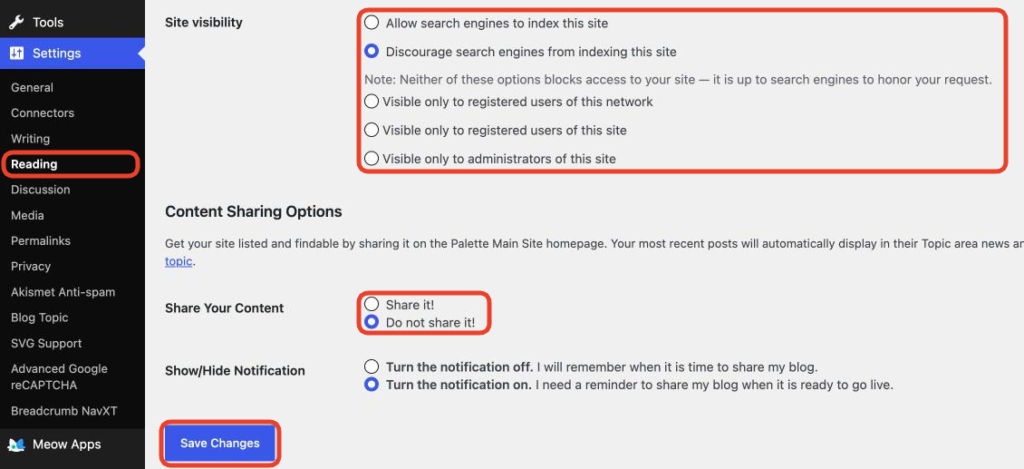
- Allow search engines to index this site: public, and can show up in Google.
- Discourage search engines from indexing this site: still public. Anyone with the link can see it; search engines are only asked not to list it.
- Visible only to registered users of this network: anyone with an ECU login.
- Visible only to registered users of this site: only people who are members of your site. See Adding members to your site.
- Visible only to administrators of this site: only you and other admins. Handy while you build.
Tip: “Discourage search engines” does not make your site private. If work on the site should not be public, choose one of the Visible only options.
List your site on Palette
Sharing lists your site on the palette.ecuad.ca homepage, and shows your newest posts in its topic’s news.
- In Settings → Reading, under Share Your Content, choose Share it!
- Click Save Changes.
Not ready yet? Leave it on Do not share it! While Show/Hide Notification is on, a reminder at the top of your Dashboard nudges you to share it later. Your site’s topic is set in Settings → Blog Topic.
Choose your homepage
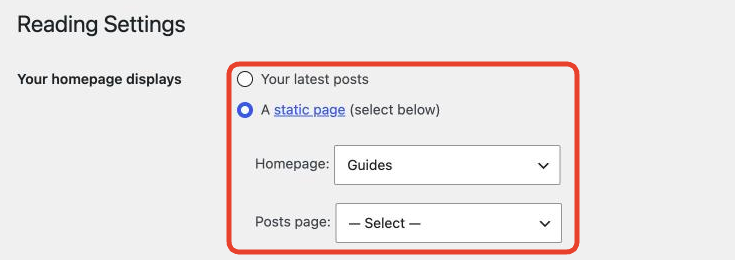
- In Settings → Reading, under Your homepage displays, choose Your latest posts for a blog-style feed, or A static page.
- If you chose a static page, pick it under Homepage. To show your posts on another page, pick that under Posts page.
- Click Save Changes.
Good to know
- Your site’s name and tagline are in Settings → General.
- Which editor people get on your site is set in Settings → Writing. See Editors: Classic vs block.
- Comment settings are in Settings → Discussion. See Managing comments.