Approve, reply to or remove comments on your site, and choose whether posts take comments at all.
Approve, reply or remove a comment
- In your Dashboard, click Comments. A number next to it shows comments waiting for you.
- Point to a comment to see its links.
- Click Approve to show it on your site, Reply to answer it, Spam for junk, or Trash to remove it.
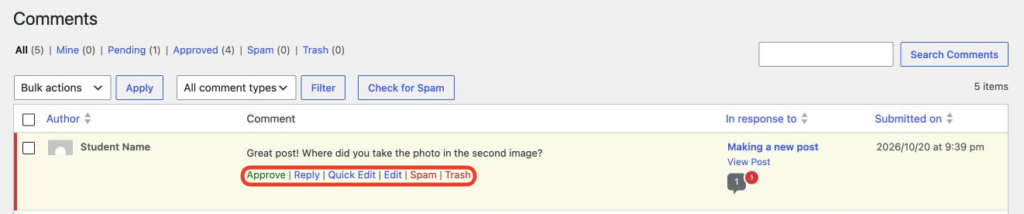
Tip: A comment with a coloured bar on its left is waiting for approval. Nobody else can see it until you approve it.
Turn comments on or off for a post
- Open the post in the block editor.
- In the post settings sidebar, click the word next to Discussion.
- Choose Open or Closed, then click Save.
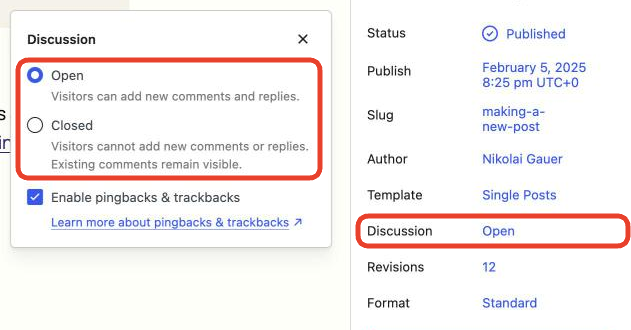
In the Classic Editor, tick or untick Allow comments in the Discussion box below the editor. No Discussion box? Click Screen Options at the top right and tick Discussion.
Set comment rules for your site
For site admins.
- Go to Settings → Discussion.
- Under Default post settings, tick Allow people to submit comments on new posts to turn comments on for new posts.
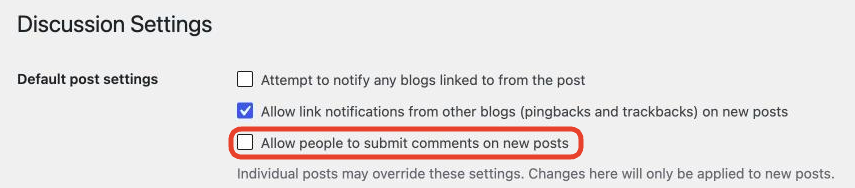
- To check every comment before it appears, tick Comment must be manually approved under Before a comment appears.
- Scroll down and click Save Changes.

Good to know
- The default only applies to new posts. Open or close comments on existing posts one at a time.
- Getting spam? In Settings → Discussion, tick Users must be registered and logged in to comment so only people with an ECU login can comment.
- Trashed comments are deleted for good after 30 days.