Your theme sets your site’s layout, fonts and colours. At ECU there are really only two to choose between. This guide is for site admins.
Which theme?
- Cohort sites: keep the ePortfolio Theme your site was set up with. It builds each student’s process archive and portfolio pages, so switching themes switches those off.
- Your own site: use Twenty Twenty-Five, the current WordPress default. It comes with ready-made layouts (patterns) and one-click looks (styles).
The other themes in the list are older ones, kept so existing sites keep working. The ePortfolio Theme is built on Twenty Twenty-Five, so the patterns below work on cohort sites too.
Switch to Twenty Twenty-Five
- In your Dashboard, go to Appearance → Themes.
- Point to Twenty Twenty-Five and click Activate.
- Visit your site to check it.
Your posts, pages and images stay when you switch. Menus and the homepage layout may need setting up again.
Change the look with a style
A style changes the colours and fonts across your whole site at once. Twenty Twenty-Five comes with eight.
- Go to Appearance → Editor.
- Click Styles, then Browse styles.
- Click a thumbnail to preview it on your site.
- Click Save.
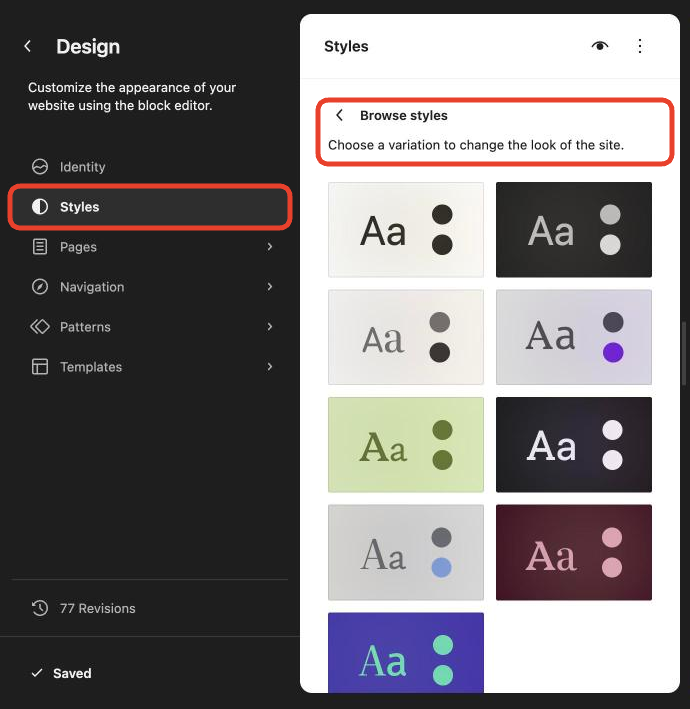
Only want new colours or fonts? Under Styles, open Colors or Typography and pick a palette or font pair.
Add a layout with a pattern
Patterns are ready-made groups of blocks, such as a banner, an image beside text, or a whole page. Insert one, then swap in your own words and images.
- In a post or page, click the + at the top left of the editor.
- Click the Patterns tab.
- Pick a category, such as Banners or About, or search for what you want.
- Click a pattern to insert it, then replace the sample text and images.
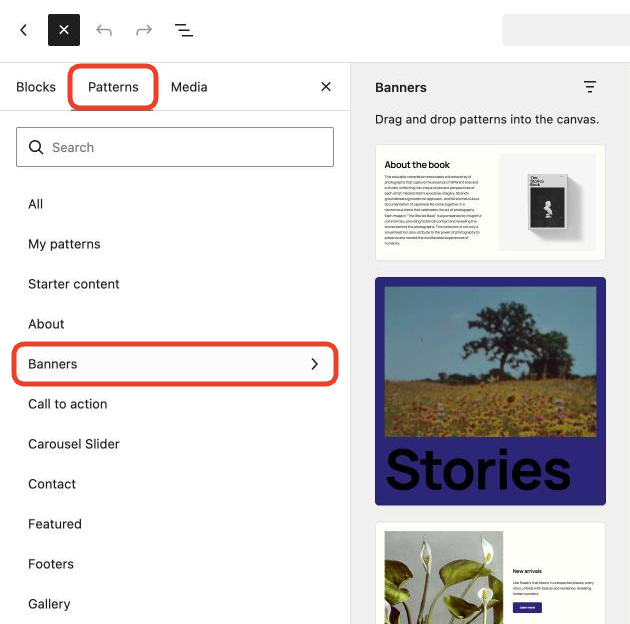
Tip: For a gallery of your own work, use the Gallery block instead of a pattern. Click +, search for gallery, and choose your images. See Adding images to a post.
Good to know
- The Pages category has whole-page layouts, such as CV bio and Landing page for event. Start a new page with one.
- Patterns only work in the block editor. See Editors: Classic vs block.
- Going further? See wordpress.org’s guides to styles and patterns.